 Image: AI generated
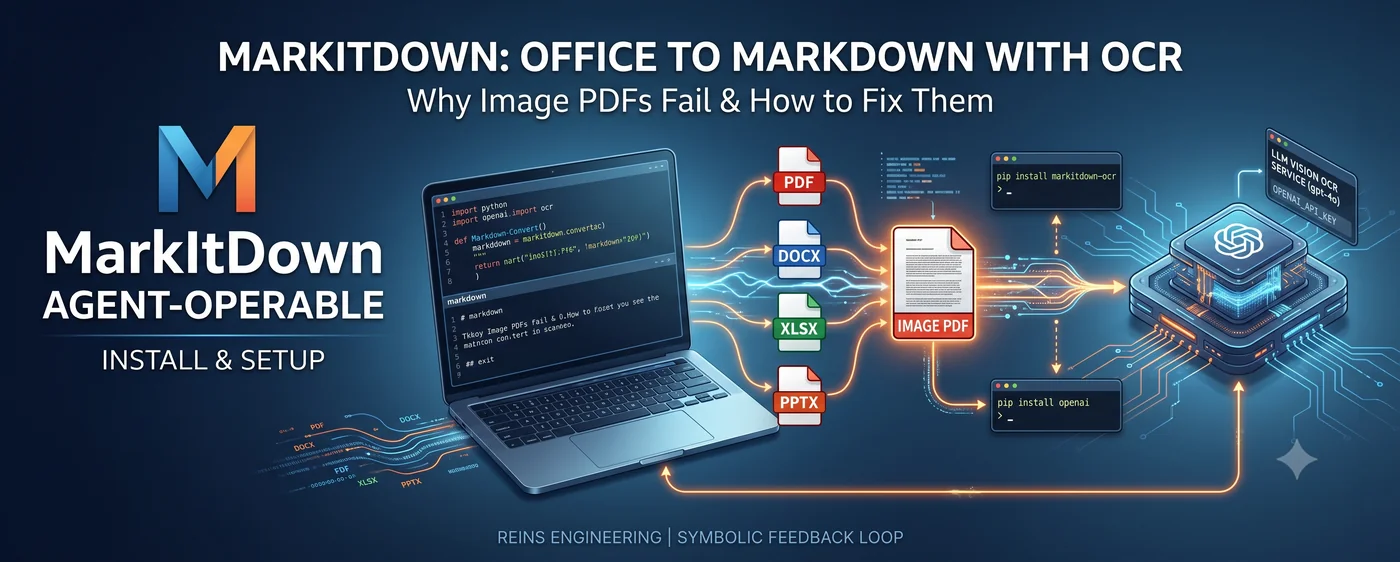
pip install markitdownalone turns PDFs, Word docs, Excel sheets, and PowerPoint decks into markdown. But feed it a PDF that’s nothing but scanned images — a scanned contract, say — and you get an empty document back. This post runs on two tracks: why and how to use MarkItDown, and how to bolt on OCR at the exact point where that trust breaks down — image-only PDFs.
Why You Should Use MarkItDown — the Agent-Operable Condition
MarkItDown is Microsoft’s open-source CLI/Python library that converts PDF, Word, Excel, PowerPoint, HTML, image, and audio files into markdown.
Start with the concept of agent-operable (a state an agent can work with). For an agent to handle a document autonomously, that document has to be in a state a machine can structurally parse — not just a state a human finds readable. This isn’t a condition that applies only to code. A business rule buried inside a PDF or an Excel sheet might as well not exist for an agent, since a human has to open it to find out what it says. This is the first of three conditions — readable, verifiable, persistent — laid out in Building Agent-Operable Systems: “readable without noise.”
So why MarkItDown specifically? You could build the same conversion yourself by wiring together third-party parsers (PyPDF2, python-docx). The difference is who built it. docx, xlsx, and pptx are all OOXML — a spec Microsoft itself owns. When the company that owns the spec builds the converter for its own format, edge cases (merged cells, nested tables, footnotes) are structurally more likely to hold up than they would with a third-party parser. If the conversion itself isn’t trustworthy, everything built on top of it toward an agent-operable state is pointless. That’s the reason to use MarkItDown — for Microsoft’s own formats, that trust comes baked in by default.
The problem is that this trust doesn’t carry over to PDFs, especially image-only PDFs. The second half of this post focuses on closing that gap with OCR.
Installation
Base install
pip install markitdown
The base install alone only handles lightweight formats like plain text and HTML. To convert PDF and Office documents, you need the format-specific extras.
Format-specific extras
pip install 'markitdown[pdf]'    # PDF (pdfminer.six + pdfplumber)
pip install 'markitdown[docx]'   # Word
pip install 'markitdown[pptx]'   # PowerPoint
pip install 'markitdown[xlsx]'   # Excel
pip install 'markitdown[all]'    # everything above, plus audio transcription, YouTube captions, Azure Document Intelligence, etc.
If PDF is all this post needs, markitdown[pdf] is enough.
Basic Usage
CLI
markitdown example.pdf                  # print markdown to stdout
markitdown example.pdf -o example.md    # save to a file
cat example.pdf | markitdown            # read from stdin (pipe)
Python API
from markitdown import MarkItDown

md = MarkItDown()
result = md.convert("example.pdf")
print(result.markdown)
Both approaches auto-select the converter based on file extension or MIME type. When there’s no extension info — reading from stdin, for example — pass a hint with -x (--extension) or -m (--mime-type).
What PDF Conversion Actually Does — It Only Reads the Text Layer
MarkItDown’s PDF converter (packages/markitdown/src/markitdown/converters/_pdf_converter.py) first uses pdfplumber to detect table/form structure on each page, and falls back to page.extract_text() when a page isn’t a table. If pdfplumber fails, it falls back to pdfminer.six.
Both libraries are tools that read a text layer that already exists inside the PDF. If a page consists of nothing but a scanned image with no text layer, extract_text() returns an empty string, and MarkItDown’s output ends up effectively empty. There is no code path in the base package that renders an image or recognizes characters in it.
In other words, these are two different problems:
- A PDF with a text layer (exported from Word, most electronic contracts) — the base install works fine. The same trust that carries Microsoft’s own formats carries here too.
- A PDF without a text layer (a document run through a scanner, a photo embedded as an image) — the base install returns an empty result. This is where the agent-operable “readable” condition breaks.
Setting Up OCR — Where the Broken Trust Gets Patched
This is where the post’s second track begins. The trust MarkItDown secures for Microsoft’s own formats has to be rebuilt separately for image-only PDFs.
1. Install the plugin
OCR support lives in a separate package, markitdown-ocr. It’s in the same repository (microsoft/markitdown), but it isn’t included in pip install markitdown.
pip install markitdown-ocr
pip install openai   # an OpenAI-compatible client — this plugin has no OCR model of its own
After installing, check that the plugin is discovered.
markitdown --list-plugins
#   * ocr             (package: markitdown_ocr)
2. What’s non-negotiable — an LLM vision client
markitdown-ocr doesn’t bundle a traditional OCR engine like Tesseract or PaddleOCR. All it actually does is base64-encode the image and ask an OpenAI-compatible chat.completions API (e.g. gpt-4o) to “extract the text from this image” (LLMVisionOCRService in _ocr_service.py). So an API key that can call a vision model is a hard requirement for OCR to work at all.
from markitdown import MarkItDown
from openai import OpenAI

md = MarkItDown(
    enable_plugins=True,
    llm_client=OpenAI(),      # reads OPENAI_API_KEY from the environment
    llm_model="gpt-4o",
)

result = md.convert("scanned_contract.pdf")
print(result.markdown)
Any OpenAI-compatible client — Azure OpenAI included — can be passed in the same way.
from openai import AzureOpenAI

md = MarkItDown(
    enable_plugins=True,
    llm_client=AzureOpenAI(
        api_key="...",
        azure_endpoint="https://<resource>.openai.azure.com/",
        api_version="2024-02-01",
    ),
    llm_model="gpt-4o",
)
3. It doesn’t work from the CLI — verified against the actual code
The markitdown-ocr README gives this as its usage example:
markitdown document.pdf --use-plugins --llm-client openai --llm-model gpt-4o
But checking MarkItDown core’s CLI argument definitions directly (packages/markitdown/src/markitdown/__main__.py) shows that no such flags exist — there is no --llm-client or --llm-model. The CLI supports -o (output file), -x (extension hint), -m (MIME hint), -c (charset), -d/--use-docintel, --use-cu, -p/--use-plugins, --list-plugins, and --keep-data-uris, and that’s it — the MarkItDown constructor only ever receives enable_plugins=args.use_plugins. In other words, the README’s CLI example is a documentation bug; it doesn’t actually run.
OCR only works through the Python API — llm_client/llm_model have to be passed in directly. There’s no way to hand the CLI an API key.
4. How it actually works — embedded-image OCR and full-page OCR fallback
PdfConverterWithOCR (_pdf_converter_with_ocr.py) runs in two stages.
- Embedded images first: when a page mixes text with pictures (say, a scanned signature dropped into the middle of the body text), only the image gets cropped out, sent to LLM vision, and the result is interleaved back with the surrounding text by its original Y-position, preserving reading order.
- Full-page OCR fallback: if text extraction comes back completely empty (a fully scanned PDF), the whole page is rendered as a 300dpi PNG and sent to LLM vision one page at a time (
_ocr_full_pages).
Extracted text is always wrapped in this format:
*[Image OCR]
<extracted text>
[End OCR]*
5. Tuning accuracy with a custom prompt
The default prompt is “extract all the text from this image, preserving the original layout and order.” For documents heavy on tables, vertical text, or stamps and signatures, overriding it with llm_prompt can improve accuracy.
md = MarkItDown(
    enable_plugins=True,
    llm_client=OpenAI(),
    llm_model="gpt-4o",
    llm_prompt="Extract all text from this image, but preserve table structure as markdown tables.",
)
6. Batch processing multiple files
When running an entire folder of scanned PDFs at once, each file triggers its own API call — wrap each conversion so a single failure doesn’t kill the whole batch.
from pathlib import Path
from markitdown import MarkItDown
from openai import OpenAI

md = MarkItDown(enable_plugins=True, llm_client=OpenAI(), llm_model="gpt-4o")

for pdf_path in Path("scans/").glob("*.pdf"):
    try:
        result = md.convert(str(pdf_path))
        pdf_path.with_suffix(".md").write_text(result.markdown, encoding="utf-8")
    except Exception as e:
        print(f"failed: {pdf_path.name} — {e}")
7. What if you install the plugin without an llm_client?
The plugin loads, but OCR quietly turns itself off. register_converters() in _plugin.py only builds an LLMVisionOCRService when both llm_client and llm_model are present; otherwise it registers the converters with ocr_service=None. In that state, it silently falls back to text-layer-only extraction — no error, no warning. Most “I installed the plugin but OCR isn’t working” problems trace back to this exact point.
8. It even tries to recover corrupted PDFs
When pdfplumber and pdfminer can’t open a PDF at all — a truncated EOF, say — markitdown-ocr falls back to rendering the pages directly with PyMuPDF (fitz) and retries. If that path also fails, it leaves *[Error: Could not process scanned PDF]* in the result.
9. Cost and speed
Because it sends whole pages to a vision model, cost and latency accumulate in proportion to the page count of the scanned document. A 300dpi render isn’t cheap in tokens per image, so it’s safer to sample a handful of pages first to gauge quality and cost before running an entire multi-hundred-page document through it.
Verifying OCR Output — Coming Separately
Everything above is about turning OCR on. Turning it on isn’t the same as being able to trust the result — under the current design, where things pass silently whether or not llm_client is set and whether or not the page is blank, there’s no deterministic procedure for judging whether OCR output is actually trustworthy.
That procedure isn’t covered here. How to apply the Symbolic Feedback Loop principle — LLM generates → a deterministic tool judges → feedback → repeat — to OCR output is a separate post/tool.
Practical Checklist
- If you’re only dealing with ordinary PDFs that have a text layer, the base
markitdown[pdf]install is all you need. No OCR plugin required. - If you have to handle scanned or photographed PDFs,
markitdown-ocrplus an OpenAI (or compatible) API key is mandatory. There’s no integration with a free, local, traditional OCR engine like Tesseract. - If OCR output comes back empty, the first thing to check is whether
llm_client/llm_modelwere actually passed in. It fails silently, so nothing shows up in the logs. - OCR can’t be turned on from the CLI alone. A Python script calling
MarkItDown(enable_plugins=True, llm_client=..., llm_model=...)is required. - There’s no mechanical way yet to judge how trustworthy the result is — for now, a human has to spot-check a sample.
Summary Table
| Situation | What you need | Notes |
|---|---|---|
| PDF with a text layer | pip install markitdown[pdf] | pdfplumber/pdfminer extract the text |
| Some embedded images need OCR | markitdown-ocr + LLM vision client | crops just the images, interleaves with text |
| Fully scanned (whole page is an image) | markitdown-ocr + LLM vision client | renders the whole page at 300dpi, then OCRs it |
| Corrupted PDF | same as above (automatic fallback) | retries by rendering with PyMuPDF |
llm_client not set | — | OCR silently skipped, no error |
Passing --llm-client on the CLI | not possible (no such flag exists) | Python API only |
| Judging OCR output reliability | (planned) | to be covered by a separate verifier |
Related Posts
- Building Agent-Operable Systems — the three conditions (readable, verifiable, persistent), and where MarkItDown fits in
- Agent Operable Codebase — the same principle applied to code
Sources
- microsoft/markitdown — repository root
_pdf_converter.py— the base PDF converter (text-layer extraction only)__main__.py— CLI argument definitions (confirms--llm-client/--llm-modeldon’t exist)markitdown-ocrREADME_pdf_converter_with_ocr.py_ocr_service.py_plugin.py- markitdown pyproject.toml — list of extras
Changelog
- 2026-07-09: Initial release — added the agent-operable framing, expanded OCR setup as the second half, added a placeholder section for the verifier